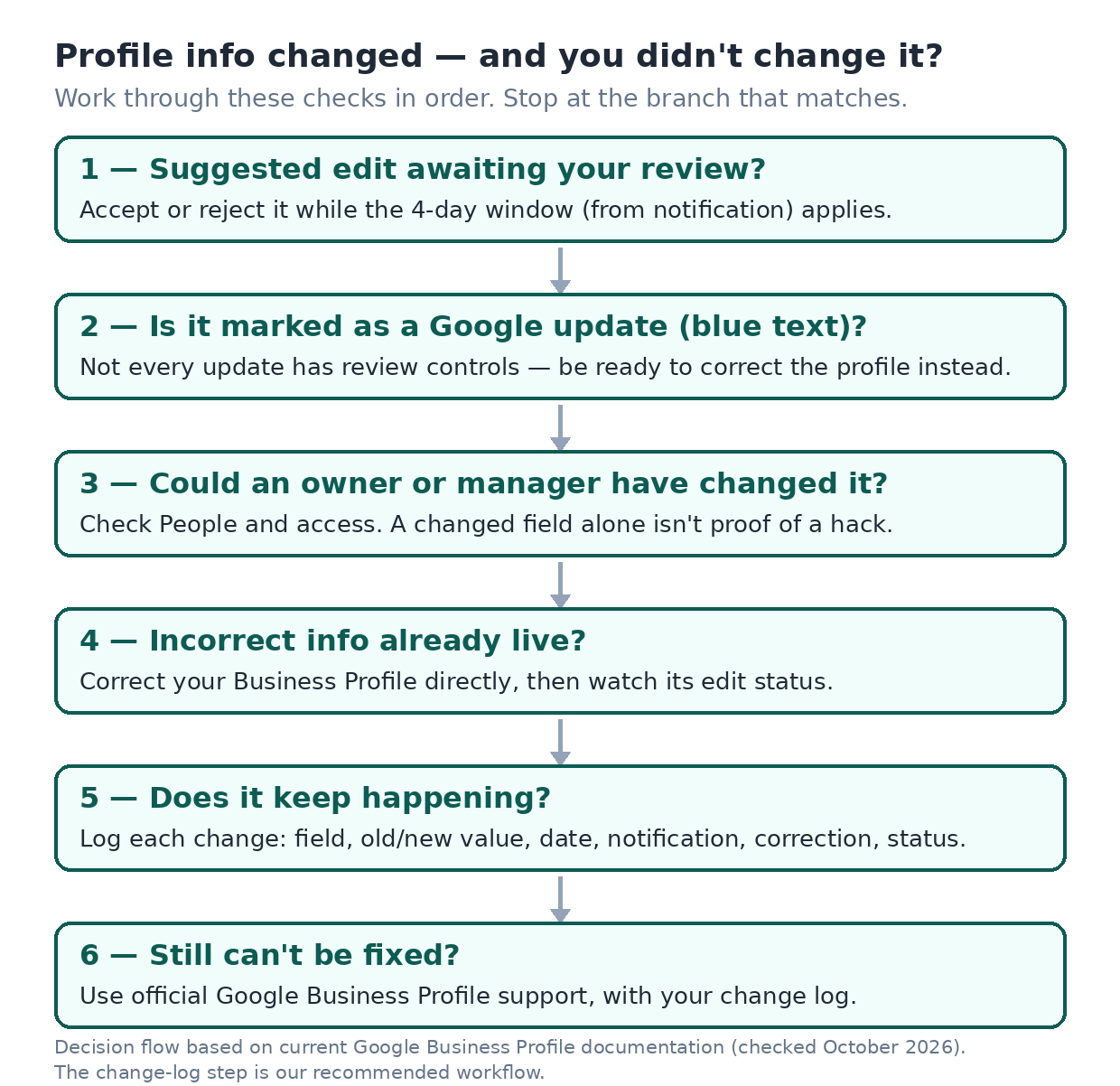
You opened your Google Business Profile and something is off — the hours look wrong, the phone number is not yours, or the category no longer matches your store. You did not make that change.
This is not automatically a hack, and it is not always something you can simply “reject.” Google Business Profiles can change in several different ways, and each one has a different response. Work through the checks below in order, and stop at the branch that matches what you see.
(This guide assumes your profile is already set up and verified. If it isn’t yet, start with our Google Business Profile setup checklist — everything below covers what happens after setup.)
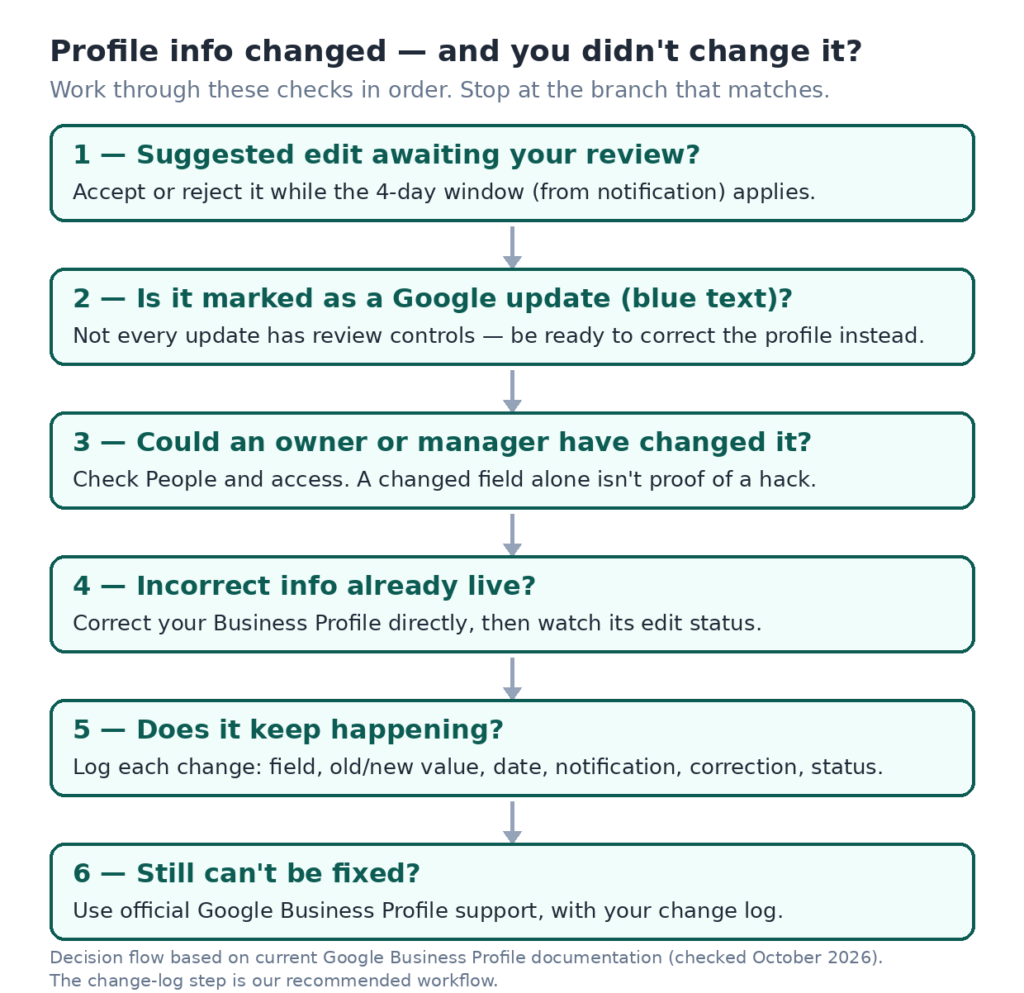
Step 1: Is a suggested edit waiting for your review?
Google may receive suggestions from users to update your Business Profile. For certain suggested edits, Google will notify you before the suggestion is published.
If a suggested edit requires your review, you may receive an email or an in-product notification. Once you are notified, you have 4 days to accept or reject that suggestion.
Two qualifiers matter here, and they decide whether you should act today:
- The 4-day window applies only to suggested edits that require your review — not to every suggestion users send to Google.
- If you don’t respond within 4 days, Google may publish the update, but only if it is supported by other publicly available information, such as your business website. The silence outcome is possible under that condition — it is not an automatic expiry on everything.
So if you find a review notification, treat it as time-sensitive. Accept it if it is correct. Reject it if it is wrong. Either way, answer it while the choice is still yours.
Google does not document that every suggestion produces a notification, and it does not promise to show you who submitted an individual suggestion. The control you actually get is: on certain edits, you get a short window to decide. (Google’s own summary of these notification and review rules: Understand Google updates on your Business Profile.)
Step 2: Is it showing as a Google update?
Google gathers business information from different sources, like user reports and licensed content, plus other publicly available information. If sources report that your profile info is incorrect or outdated, Google may update your profile itself.
In the current profile editor, Google marks information it changed in blue; black or white text means there is no Google update on that field. If your profile has Google updates, you will also find a notification at the top of the page, and an alert in the “Edit profile” section.
One documented limit shapes everything about this branch: you can’t manage all Google updates through your Business Profile. Accept/reject controls attach to suggested edits that require your review (Step 1); Google does not document a reject control for every Google-applied update. So don’t go hunting for a button that may not exist for the update in front of you. Your reliable lever on this branch is Step 4: correct the profile directly.
Step 3: Could someone with authorized access have changed it?
Before you assume an outsider, look at the people who legitimately manage the profile. In Business Profile settings → People and access, users in the account can see the names and email addresses of the owners and managers. (Reference: Manage your Business Profile owners & managers.)
Ask three things:
- Is everyone on that list someone you recognize and still want there?
- Could this change be one of their edits (for example, a teammate updating the hours from their own phone with good intentions)?
- Did anyone new recently join the list?
Only owners can remove other owners and managers; if you can’t select a user, your own access may be manager-level. Note also that new owners and managers must wait 7 days before they can use some management features, such as deleting the profile, removing other owners or managers, or transferring primary ownership — importantly, those limits govern account-level control actions; they do not stop a newly added user from editing business information.
Be precise about what this check proves. An unfamiliar account in People and access is a real finding worth acting on (remove it if you’re an owner, and review what else it could access). But a Google update by itself is not evidence that your account was compromised — blue text means Google changed the field, which happens through Google’s own data process, no login required. Keep the access check as a diagnostic branch, not an accusation.
Step 4: If the wrong information is already live, correct your profile directly
Google is explicit here: you can always update your Business Profile directly to ensure it remains accurate.
Submit the correction and then watch its status, because Google reviews the edits you make to your verified profile. Your edits show up as:
- Accepted — your updated info displays on your profile.
- Pending — your edit is still under review. This usually takes up to 10 minutes, but sometimes it can take up to 30 days.
- Not approved — Google couldn’t confirm the change’s accuracy. You might be able to appeal rejected business information edits.
Do not confuse this review of your own edits with the 4-day suggested-edit window in Step 1. They are two different clocks run by two different processes: the suggested-edit clock starts when Google notifies you about someone else’s suggestion; the edit-review statuses above track changes you submitted. If your correct hours are sitting at “Pending,” that means Google is reviewing your submission — it does not mean the 4-day window is involved. (Google’s reference: Understand what happens to your Business Profile edits.)
Step 5: What about edits applied without review?
There is one more documented category, and knowing it exists keeps you from wasting time looking for a review window that never opened: Google may apply suggested user edits to your business information without prior review. Per Google’s documentation, this happens in cases where edits are necessary to meet policy guidelines.
Google doesn’t publish a list of which edit types fall into that class, so no one can honestly tell you “edits about X are never reviewed.” What you can do with this branch is limited and clear: if the result is wrong, correct the profile directly (Step 4) and record what happened (Step 6).
Step 6: If it keeps happening, document before you escalate
Some businesses see the same field flipped more than once. Before you contact Google, give yourself evidence — for your own diagnosis as much as for support.
ShopkeeperManual operational recommendation (our workflow, not a Google requirement): each time a field changes unexpectedly, log the field that changed, the correct value, the incorrect value, the date and time you noticed it, a screenshot if you can grab one, whether you received a notification, the correction you submitted, and the status it ended with.
That log answers the diagnostic questions in Steps 1–3 the next time it happens: was there a notification? was the field blue? was the same field involved? It also turns a support conversation from “it keeps changing” into a specific, checkable sequence.
When normal correction doesn’t hold — or the problem cannot be managed through the profile at all — the official route is Google Business Profile support through the profile’s help flow. (If your profile is actually suspended, that’s a separate recovery process, covered in our guide to fixing a suspended Google Business Profile.) One honest boundary: Google’s documentation does not describe a dedicated escalation lane for “recurring bad updates,” and it doesn’t guarantee outcomes there. Go in with the log, correct directly afterward, and keep expectations attached to what Google documents, not to what forum threads promise.
Reduce the odds of a repeat
Recall Step 1’s documented mechanism: if you don’t respond to a reviewable suggestion within 4 days of notification, Google may publish it if it is supported by other publicly available information, such as your business website. That documented fact has a practical consequence fully inside your control: make sure the official information you publish yourself (starting with your own website’s hours, phone, and address) is correct and consistent. If your website still shows last winter’s hours, you are supplying the corroboration for a change you don’t want.
What this does not mean: you cannot trace a specific applied change to a specific directory, aggregator, or third-party site unless Google exposes the source, and Google does not document a per-edit source history for these updates. (Google’s own documentation focuses on reviewing and correcting; it also notes plainly that you can’t manage all Google updates through your profile.) Clean your own published data because it is documented input to the system — not because blaming a directory will undo a change.
Quick answers
Will Google always notify me about suggested edits?
No. Google says it notifies about certain suggested edits, and you may receive that notice by email or in-product. Handling notices promptly once seen is the part you control.
Do I get four days to reject every edit?
No. The 4-day accept/reject window is for suggested edits that require your review, counted from notification. Other changes — your own edits, Google updates, policy-guideline edits — follow different paths above.
Can I see who suggested the change?
Google does not document a per-suggestion identity or history. You can see the authorized owners and managers in People and access; that’s a different list for a different question.
Does a changed field mean my account was hacked?
Not from this evidence alone. Start at Step 1, walk down, and only treat an unfamiliar authorized account — not a changed field — as an access problem.
Can I turn suggested edits off?
Not through any control Google documents. The documented toolkit is: review what requires review, correct what is live, keep your own published information clean, document repeats, and escalate through official support when normal correction fails.