Your Google Business Profile is the single most important free marketing asset a local business owns. It’s what shows up when someone searches your business name, and it’s your ticket into the Google Maps results when they search for what you do.
But here’s what most setup guides get wrong: they treat it as a 5-minute form. Fill in a name, add an address, done. In reality, the choices you make during setup — especially your business type and how you verify — determine whether your listing goes live smoothly or gets flagged, delayed, or suspended.
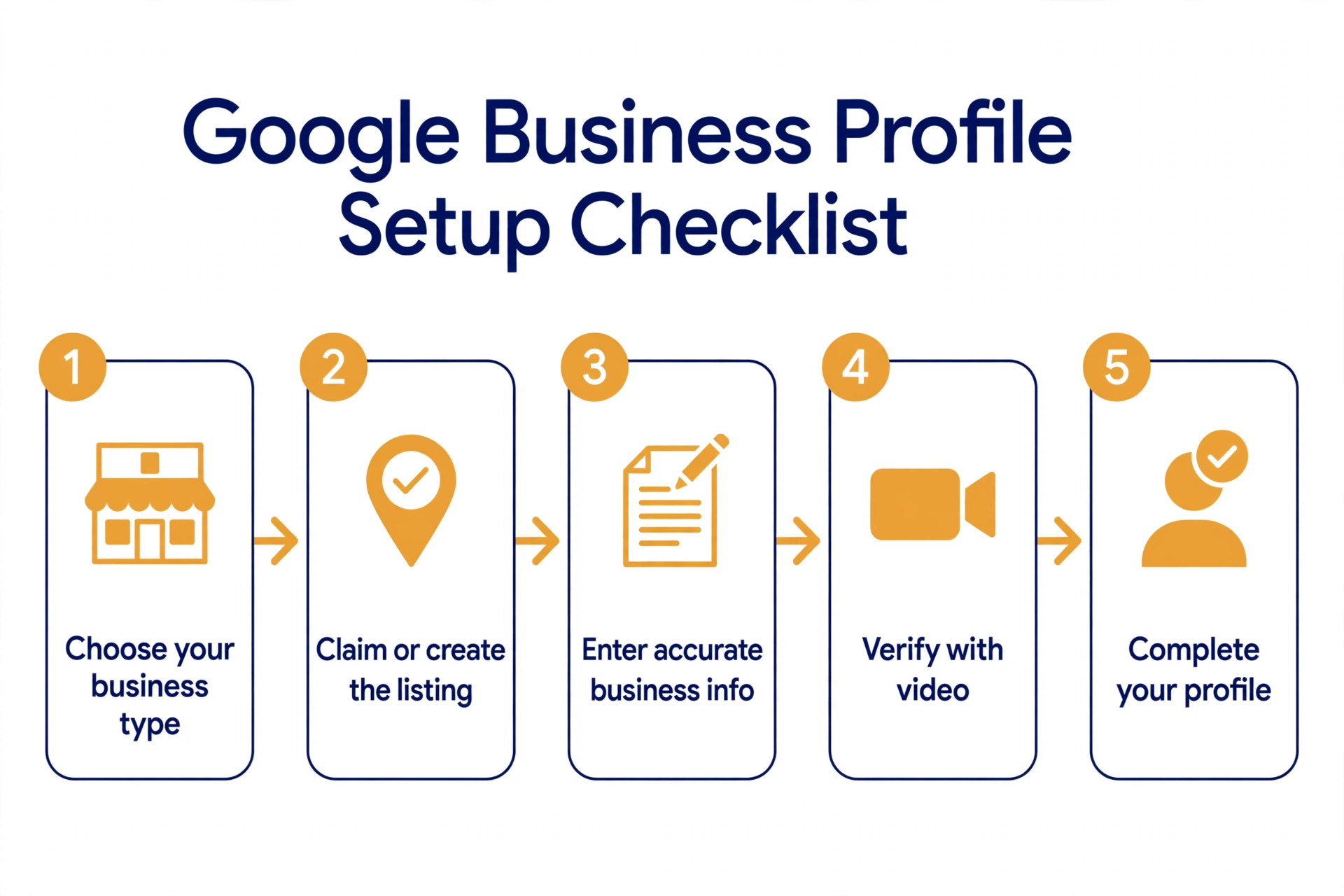
This checklist walks you through the entire process the right way, in order, based on Google’s current documentation. Follow it once, and you’ll never have to redo it.
Step 0 — Choose the right business type (do this first)
Before you type a single word, decide which of these three you are. Google treats them differently, and choosing wrong is one of the most common reasons listings get suspended later.
The three types
- Storefront: customers come to you. (Salon, restaurant, retail shop.)
- Service-area business: you go to customers. (Plumber, cleaning service, mobile dog groomer.)
- Hybrid: both — customers visit you and you travel to them. (An auto repair shop that also offers mobile service.)
Why this matters so much
Google’s verification process is built around your business type — its video verification page explicitly covers storefronts, service-area businesses, and hybrids, and what you must show in your verification video depends on which one you are. (Source: https://support.google.com/business/answer/14271705)
More importantly, misrepresenting your business type or location violates Google’s guidelines for representing your business — and misrepresentation is a suspension trigger. A service-area business that lists a home address as a storefront, or a business that claims a service area it doesn’t actually serve, is asking for trouble. (Source: https://support.google.com/business/answer/3038177)
If setup mistakes ever do get your listing suspended, our reinstatement guide walks through Google’s official appeal process: Google Business Profile Suspended? How to Fix It (2026).
Step 1 — Check whether a listing already exists (claim vs. create)
Search your business name on Google Maps before creating anything. One of three things is true:
- No listing exists. You’ll create a new one (Step 2).
- An unverified listing exists. Someone — Google, a customer, a data aggregator — already created it. You claim it instead of creating a second one. Creating a duplicate splits your ranking signals and creates a mess you’ll have to merge later.
- A verified listing exists that someone else manages (a former marketer, a business partner). You request ownership transfer from the current owner — Google has a formal process for this. (Source: https://support.google.com/business/answer/2911778)
This two-minute check prevents the single most common setup headache: duplicate listings.
Step 2 — Create or claim your profile
Creating a new listing
Google’s official flow (Source: https://support.google.com/business/answer/2911778):
- Go to business.google.com/add.
- Click “Add your business to Google.”
- Follow the on-screen instructions to add your business details.
- Select a verification option and follow the steps.
It’s free — Google states explicitly that you can add or claim your business at no charge.
Claiming an existing unverified listing
- On your computer, open Google Maps and search for your business name and city.
- Select the listing, then choose “Claim this business” → “Manage now.”
- Select a verification option and follow the on-screen instructions. (Source: https://support.google.com/business/answer/2911778)
Step 3 — Enter accurate business information
Every field you fill in is a promise to Google’s reviewers. Get these right the first time:
- Business name: your real-world name, exactly as it appears on your storefront, website, and legal documents. Don’t add keywords, taglines, or city names — “keyword stuffing” the business name is a classic suspension trigger.
- Address: your real address, formatted correctly. Google has detailed address guidelines — read them before submitting. (Source: https://support.google.com/business/answer/2911778)
- Phone: a number where customers actually reach the business.
- Website: if you have one. If you don’t, that’s fine — but it’s worth building one eventually.
- Hours: your real hours, including special hours for holidays. Wrong hours are one of the top customer complaints in reviews.
Google’s own guidance is blunt on this point: make sure your business address is correct and meets their guidelines before you submit. Fixing core info after verification can trigger re-verification.
Step 4 — Verify your business (video verification walkthrough)
Google has to confirm you’re really associated with the business. The verification options you’re offered vary, but in practice video verification is the method most businesses see today — postcard verification is rare now, and phone/email options aren’t offered to everyone.
Here’s what Google’s official video verification page requires (Source: https://support.google.com/business/answer/14271705):
What to show in the video
What you film depends on your business type (Step 0), but generally you need to show:
- Your location — street signs, storefront signage, or neighboring businesses that prove where you are.
- The business itself — the premises, equipment, or work vehicles.
- Proof of management — you unlocking the premises, entering staff-only areas, or opening the cash register. Something that proves you run the place, not just walked past it.
The technical rules
- The video must be an unedited, unique, complete recording with no breaks.
- It must be at least 30 seconds long.
- It must be recorded live through your Business Profile on a mobile device — pre-recorded videos aren’t allowed, and you can’t record offline and upload later.
- It must not include sensitive info (bank account, tax, or ID numbers), private info about anyone, or other people’s faces.
Practical tips
- Plan your route before you hit record. Walk the path once: start at the street sign, move to the storefront, then inside to your proof-of-management shot.
- Do it during business hours with the lights on and signage visible.
- Don’t edit core profile info while verification is pending. Changing your name, address, or category mid-review can delay or restart the process.
- Allow a few business days for Google to review the video after you submit it. You’ll be notified when it’s done.
- If verification fails or you run out of options, use Google’s verification status tool to check where things stand and contact support — don’t just keep resubmitting blindly.
Step 5 — Complete your profile like a pro
Verification gets you listed. Completion gets you customers. Work through this checklist:
- Primary category + secondary categories. Choose the one category that best describes your core business as primary, then add secondary categories for your other services (Google allows up to nine additional ones). Be specific — “Plumber” beats “Contractor.”
- Services or products. List what you actually offer, with plain-English names customers search for.
- Business description. A short, honest paragraph about what you do and who you serve. No keyword stuffing.
- Attributes. These are the details searchers filter by: wheelchair accessibility, women-owned, dine-in/takeout/delivery, free Wi-Fi. Set every attribute that truthfully applies.
- Photos — then keep adding them. Upload a logo, a cover photo, and real photos of the interior, exterior, team, and work. Then keep going: fresh photos signal an active, cared-for business. Make this a monthly habit, not a one-time task.
- Opening date. Set it — it builds trust with searchers.
- Holiday and special hours. Set them before each holiday, not after the angry reviews arrive.
Setup notes by industry
Salons and barbershops (storefront)
Primary category “Hair salon” or “Barber shop” plus secondaries for specialties (e.g., “Hair coloring service”). Attributes matter here — set the ones that describe your clientele and accessibility. Photos of real work (with client permission) outperform stock-style shots.
Cleaning businesses (usually service-area)
You’re almost certainly a service-area business: hide your address and define the areas you actually serve — don’t claim a 100-mile radius you can’t cover. Your verification video should show your equipment, vehicles, and supplies as proof of management.
Plumbers and home services (service-area or hybrid)
Same service-area logic as cleaning. List emergency services explicitly in your services, set hours that reflect reality (including 24/7 if true), and keep your phone number current — it’s the field customers use most.
Restaurants and coffee shops (storefront)
Beyond the basics: add your menu link, set dine-in/takeout/delivery attributes accurately, and upload food photos regularly. Holiday hours are critical — nothing earns a 1-star review faster than a “closed” sign on a listed open day.
After you’re live: the two things that actually grow the listing
Setup is the foundation, not the finish line. Two ongoing habits compound over time:
- Collect reviews steadily. Once your profile is verified, start asking happy customers — our complete system covers the policy-safe way to do it: How to Get More Google Reviews (The Legitimate Way).
- Respond to every review. Google’s own guidance recommends it, and prospects read your replies while deciding whether to call you: How to Respond to Negative Google Reviews (+ Examples).
Mistakes that delay or derail setup
- Creating a second listing when one already exists (the duplicate trap).
- Keyword-stuffing the business name.
- Choosing the wrong business type — or hiding it (service-area business posing as a storefront).
- Using a P.O. box, virtual office, or co-working address as your location.
- Editing your name, address, or category while verification is pending.
- Following outdated guides: Google retires Business Profile features from time to time, so if a years-old tutorial tells you to configure something you can’t find, check Google’s current help pages rather than assuming you’re doing it wrong.
Frequently asked questions
Is Google Business Profile free?
Yes. Google states explicitly that you can add or claim your business at no charge. Anyone trying to sell you the listing itself is running a scam. (Source: https://support.google.com/business/answer/2911778)
How long does verification take?
It varies by method and business. For video verification, Google reviews your submission after you upload it — allow a few business days, and avoid editing your core business info while you wait.
Do I need a physical storefront?
No. Service-area businesses (plumbers, cleaners, mobile services) are fully eligible — you’ll verify the same way, with a video tailored to your business type. What isn’t eligible is an online-only business with no local presence. (Sources: https://support.google.com/business/answer/14271705, https://support.google.com/business/answer/3038177)
Can I hide my address from the public?
Yes — if you’re a service-area business, your address is used for verification only and isn’t shown on your public listing. Storefronts must show theirs.
Someone else already verified my business. What now?
Use Google’s ownership-request process to request management access from the current profile owner. Don’t create a second listing. (Source: https://support.google.com/business/answer/2911778)
What if my verification fails?
Check your status in Google’s verification status tool, fix whatever it flags (usually the video didn’t show enough proof), and contact Google Business Profile support if you’re stuck. Resist the urge to change your business name or address and resubmit — that usually makes things worse, not better.
Last updated: September 28, 2026. Google’s setup and verification flows change periodically — the steps above were last verified against Google’s published documentation on this date.
Related reading: Google Business Profile Suspended? How to Fix It (2026) · How to Get More Google Reviews (The Legitimate Way) · How to Respond to Negative Google Reviews (+ Examples)
2 thoughts on “How to Set Up Google Business Profile: The Complete 2026 Checklist”
Comments are closed.