Your Google Business Profile has been suspended. Your listing is gone from Google Search and Maps, and customers searching for exactly what you offer can’t find you. It’s stressful — but in most cases, it’s fixable.
This guide walks you through Google’s official reinstatement process, step by step, using only what Google itself publishes in its help documentation. No guesswork, no invented timelines, and no paid “reinstatement service” required.
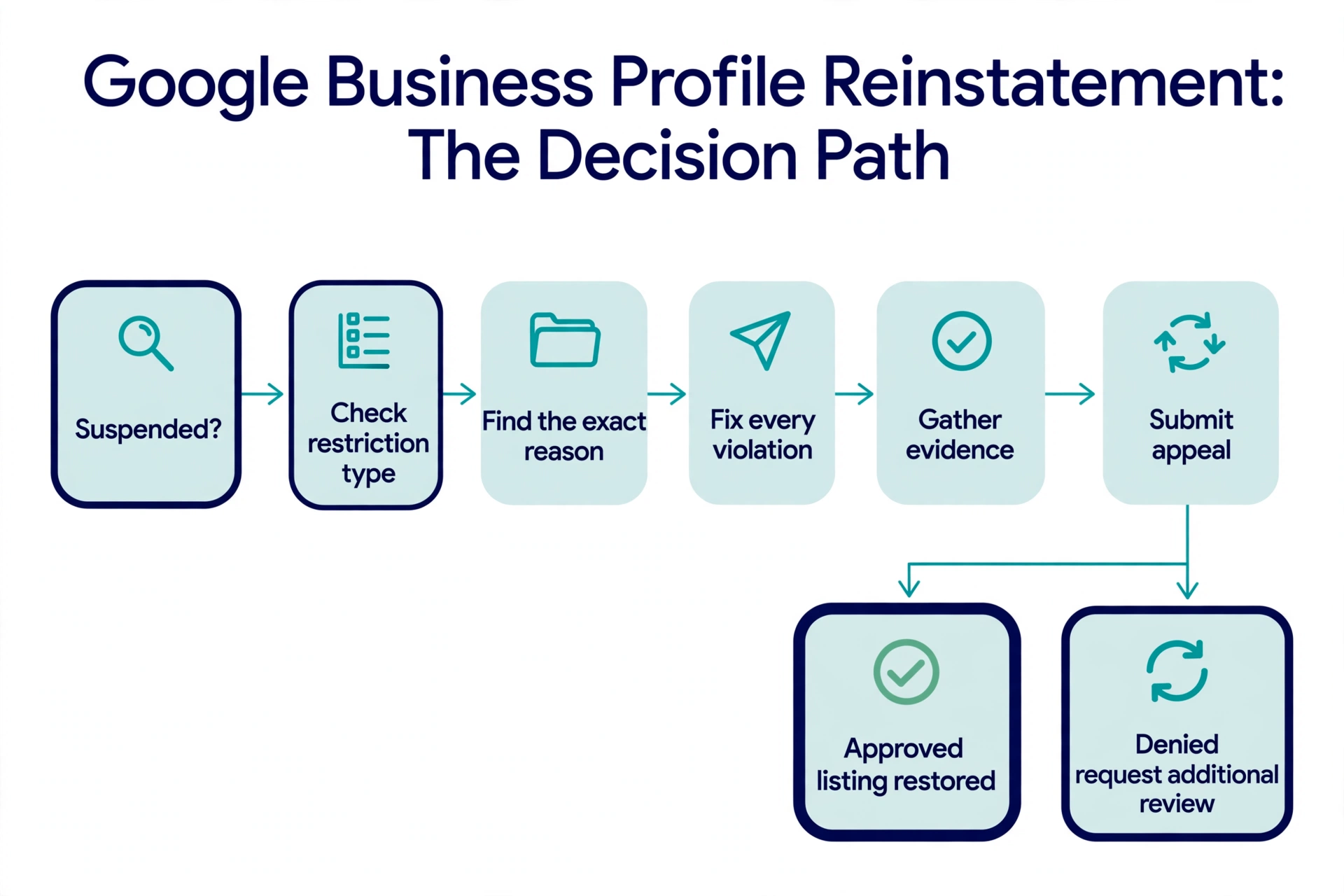
The single most important rule — and the one most business owners get backwards — is this: fix the violation first, then appeal once, with your evidence ready. Google requires your profile to follow all of its guidelines before you submit an appeal. Appealing an unchanged profile almost always fails.
Start here: Google’s official page on fixing suspended or disabled profiles (https://support.google.com/business/answer/4569145).
First, make sure it’s actually a suspension
Not every missing listing is a suspension, and the steps below only help if yours actually is one.
What a suspension looks like
- You see a notice in your Business Profile dashboard saying the profile is suspended or disabled.
- Your listing no longer appears on Google Search or Google Maps at all.
Problems that look like suspensions but aren’t
- Your profile is still unverified, or verification is pending. Finish verification first.
- The listing was marked “permanently closed.” That’s a status issue, not a suspension — update the hours/status.
- A duplicate listing is outranking yours. Customers see the other listing; yours looks “gone.” Search for duplicates and report them.
- A ranking drop. If you’re on page three instead of page one, that’s a visibility problem, not a removal.
If none of the suspension signs apply to you, troubleshoot the actual problem instead — the appeal process below won’t help.
What kind of restriction do you have?
A quick terminology note: Google’s documentation says profiles are “suspended or disabled.” Online you’ll see people talk about “soft suspensions” and “hard suspensions” — that is community shorthand, not Google’s terminology. It’s useful shorthand, so this guide uses it, but the distinction comes from what business owners observe, not from Google’s docs.
Restricted — what people call a “soft suspension”
Your listing is still visible to customers on Search and Maps, but you’ve lost the ability to manage it. You can’t edit information, respond to reviews, or post updates until the restriction is lifted.
Suspended or disabled — what people call a “hard suspension”
Your listing has been removed from Google Search and Maps entirely. Customers can’t find you, call you, or get directions. This is the situation most of this guide addresses.
Account-level restriction
Sometimes the problem isn’t the profile — it’s the Google account. When your account is restricted, every Business Profile you manage gets suspended, and you can’t create or claim new ones. Google’s documentation says to appeal the account restriction first through your Google Account’s My accounts page, and only then appeal the Business Profile itself. If all of your profiles went down at once, start here.
Why Google suspends Business Profiles (the common causes)
An honesty note before the list: Google does not publish the exact trigger for any individual suspension. What follows are the most common causes, each tied to a specific rule in Google’s guidelines for representing your business (https://support.google.com/business/answer/3038177). Work through them against your own profile and check each one.
1. Keywords or taglines stuffed into your business name
Your business name must be your real-world business name — the name on your storefront, website, and invoices. Google’s guidelines prohibit adding taglines, store codes, marketing descriptions, or location or service keywords to the name. “Algaari Plumbing” is fine. “Algaari Plumbing — Best Emergency Plumber Dallas TX 24/7” will get you suspended.
Fix: Change the name back to the exact real-world name.
2. Address problems
Google doesn’t accept P.O. boxes. A virtual office — an address you rent but don’t actually operate from — is not eligible for a profile. Coworking spaces only qualify if your business has clear signage there, is staffed by your own people during your stated hours, and receives customers at that address during those hours.
Fix: Use the real, staffed location — or, if you don’t serve customers at your address, hide it (see #3).
3. Service-area business showing a home address
Google’s own example: a plumber who works from a residential address should clear the address field entirely and define service areas instead. If you’re a mobile business — a cleaning company, a mobile detailer, a home-services contractor — and customers don’t come to you, your home address shouldn’t be displayed.
Fix: In your profile settings, clear the address and set your service areas.
4. Duplicate profiles for the same location
Google allows only one profile per business location. Duplicates — often created accidentally by a former employee, an agency, or Google itself — cause display problems and are a common suspension trigger.
Fix: Find the duplicate and either claim and remove it, or report it to Google for removal. Keep the single legitimate profile.
5. Wrong or misleading categories
Use as few categories as possible, and make them the most specific accurate ones. Google’s guidance: choose what the business is, not what it has — and don’t use categories as a place to stuff keywords.
Fix: Review your primary and secondary categories and correct them to match what the business actually is.
6. Phone or website issues
The phone number should preferably be local, must be under your business’s direct control, and can’t be a premium-rate number. Websites that redirect to a different business are also a problem.
Fix: Use a real local number you control, and link to your own website.
7. Prohibited content or behavior
Fake reviews, review manipulation, misleading posts or photos, and other deceptive practices can trigger suspension. If you’ve ever bought reviews or used a service that posted them for you, this may be your cause.
Fix: Remove the offending content. And never buy reviews — the legitimate way to earn them is covered in our guide to getting more Google reviews.
Step 1 — Find the exact reason
Don’t guess. Google tells you the reason — you just have to look in the right place.
- Open Google’s Business Profile appeals tool (linked from Google’s help page) and sign in with the Google account that manages the profile. The tool shows you the restricted profile, the reason for the moderation action, and a link to the specific policy that was violated.
- Read the suspension email Google sent you — it usually states the reason.
- Compare your profile field by field against Google’s business representation guidelines.
Your diagnosis checklist
Go through every item before you touch the appeal form:
- Business name — real-world name only, no keywords or taglines?
- Address — real, staffed location? (Service-area business: address hidden?)
- Categories — few, specific, and accurate?
- Phone — local number under your direct control?
- Website — your own site, no redirects to other businesses?
- Duplicates — only one profile for this location?
- Content — photos, posts, and reviews all follow the rules?
Step 2 — Fix every violation BEFORE you appeal
Google’s rule is explicit: before appealing, make sure your profile follows all of its guidelines. This is the step most owners skip — they appeal first, get denied, and then wonder why.
Walk through your diagnosis checklist and correct everything: change the name back to the real-world name, fix or hide the address, correct the categories, remove or report the duplicate. Make one careful round of corrections — then stop editing. Don’t keep tweaking the profile every day while you wait; a stable, compliant profile is what you want Google to review.
Step 3 — Gather your evidence
Do this before you open the appeal form, not after. Google accepts the following as evidence that your business is legitimate:
- Official business registration documents
- Business license
- Tax certificates
- Utility bills — electricity, phone, water, or internet
Here’s the detail that quietly sinks many appeals: the business name and address on your documents must match the Business Profile exactly. A license in a slightly different trading name, or a utility bill showing an old address, raises more questions than it answers. Line them up before you submit.
Beyond Google’s list, practitioners commonly recommend two extras (Google doesn’t list these, but they help a human reviewer): clear photos of your exterior signage showing the business name, and your lease or deed for the address.
Preparation matters: make legible scans or photos, use recent documents, name the files clearly, and have everything in one folder before you begin. You’ll see why in the next step.
Step 4 — Submit your appeal through Google’s official appeals tool
Follow these steps in order:
- Open Google’s Business Profile appeals tool (find it via Google’s official help page on fixing suspended profiles).
- Confirm you’re signed in with the Google account that manages the profile.
- Select the suspended profile and continue.
- Read the stated reason for the restriction and open the linked policy page.
- Select Submit Appeal.
- Select Add evidence. Important: once you open the evidence form, you have 60 minutes to submit it — Google states this twice in its documentation. This is why you gathered everything in Step 3.
- Upload your documents, add brief factual context, and submit.
- Wait for Google’s decision by email. You can track the appeal’s status in the appeals tool.
One critical warning: do NOT create a new Business Profile for the same business while your appeal is under review. Google explicitly warns against this — it typically just creates a duplicate that gets suspended too.
Understanding your appeal status
The appeals tool shows one of five statuses:
- Submitted — your appeal is under review.
- Approved — your profile is reinstated.
- Not Approved — your appeal was denied (see Step 5).
- Can’t be appealed — the decision is final for this profile.
- Eligible for appeal — you may submit an appeal.
A note on timing
You’ll see many articles quoting a firm reinstatement timeline. Here’s the honest version: Google’s page about appealing content and profile restrictions says appeal reviews and decisions can take up to 5 business days — but that sentence appears on the general restrictions page, not the suspension-specific page, which gives no timeline at all. Anyone promising you reinstatement in a specific number of days is guessing.
Step 5 — If your appeal is denied
A denial isn’t necessarily the end. Google allows you to request an additional review — but you must include additional evidence that wasn’t part of your original appeal. Submitting the identical appeal twice changes nothing.
Instead: diagnose what you missed. Re-read the reason Google gave, go back through the diagnosis checklist with fresh eyes, fix anything remaining, gather stronger or additional documents, and then submit the additional review.
If your status reads “Can’t be appealed,” pause before spending more time: check whether the business is even eligible for a Business Profile under Google’s guidelines. And if you’re dealing with an account-level restriction, remember the order — lift the account restriction first through your Google Account’s My accounts page, then appeal the profile.
One more scenario worth knowing: if you manage more than ten profiles, Google’s documentation describes attaching a spreadsheet with evidence and the Business Profile ID for each profile. Most small-business owners won’t need this, but multi-location businesses should know it exists.
How to keep it from happening again
Once you’re reinstated, protect the profile:
- Keep one exact name, address, and phone number everywhere — your profile, website, directories, and invoices should all match.
- Keep ownership in your own Google account. If you work with an agency, give them manager access — not ownership.
- Make one significant profile change at a time, and log every change with its date. If something breaks, you’ll know what caused it.
- Keep a compliance folder: your business license, registration, and a recent utility bill, always current.
- Service-area business? Keep the address hidden and the service areas accurate.
Frequently asked questions
How long does reinstatement take?
Google doesn’t publish a timeline on its suspension page. Its general restrictions-appeal page says reviews and decisions can take up to 5 business days — that’s the only number Google itself gives, and it isn’t a promise. Anyone quoting a firm date is guessing.
Can I just create a new Business Profile instead?
No. Google explicitly says not to create a new profile for the same business while an appeal is under review. It usually creates a duplicate that gets suspended too — leaving you worse off.
How many times can I appeal?
Don’t submit multiple appeals for the same issue before receiving a decision — Google specifically warns against it. If your appeal is denied, you may request an additional review with new evidence.
Do I need a paid reinstatement service or a lawyer?
No. The process is free through Google’s official appeals tool, and this guide covers every step. Be wary of anyone selling “guaranteed” reinstatement — Google offers no such thing.
My business is legitimate — why was I suspended?
Google doesn’t publish the trigger for individual cases. Work through the diagnosis checklist above; most cases trace back to the business name, the address, or the categories.
What if my Google account itself is restricted?
Appeal the account restriction first on your Google Account’s My accounts page. Once that’s lifted, appeal the Business Profile.
I run a service-area business from home. What address should I use?
None — hide it. Google’s own guidance (with a plumber as the example) says service-area businesses that don’t serve customers at their address should clear the address field and define service areas instead.
Will my rankings recover after reinstatement?
Google’s documentation doesn’t promise any ranking outcome after reinstatement, and this guide won’t invent one either. Focus on getting the profile compliant and reinstated; then rebuild visibility with legitimate reviews and complete, accurate information.
Last updated: September 28, 2026. Google’s appeals process changes from time to time — if you notice this guide is out of date, please tell us through the Contact page.
Next in this series: once your profile is reinstated, the legitimate way to get more Google reviews — and how to respond when a bad one lands.